ClawRelay is a native macOS app — providers, server config, request logs, usage charts — that also sits in the menu bar so you don't have to keep the window open. Under the hood it runs a local OpenAI-compatible HTTP proxy. Add your providers, set the fallback order, and when one goes down or rate-limits you, the next one takes over silently. openClaw on iOS and macOS works with it out of the box.
Quick setup
ClawRelay takes about two minutes to set up. Here's how to connect any AI client to it.
API Key: optional — generate one in the Server tab if needed
That's it. Your client now routes through ClawRelay. Switch providers, add new ones, or reorder them without touching your client config again.
Connect to openClaw
If you have openClaw installed, run this command to add ClawRelay as a provider and set it as the default — no manual config needed.
Make sure ClawRelay's server is running first, then run:
--provider-id "clawrelay" \
--base-url "http://localhost:11434/v1" \
--api-key "claw_relay_key" \
--api "openai-completions" \
--model-id "clawrelay" \
--model-name "ClawRelay" \
--context-window 128000 \
--max-tokens 16384
If you set an access key in ClawRelay's Server tab, pass it with --api-key "your-key". Leave it blank for local-only use.
Requires jq — install with brew install jq if you don't have it.
What each tab does
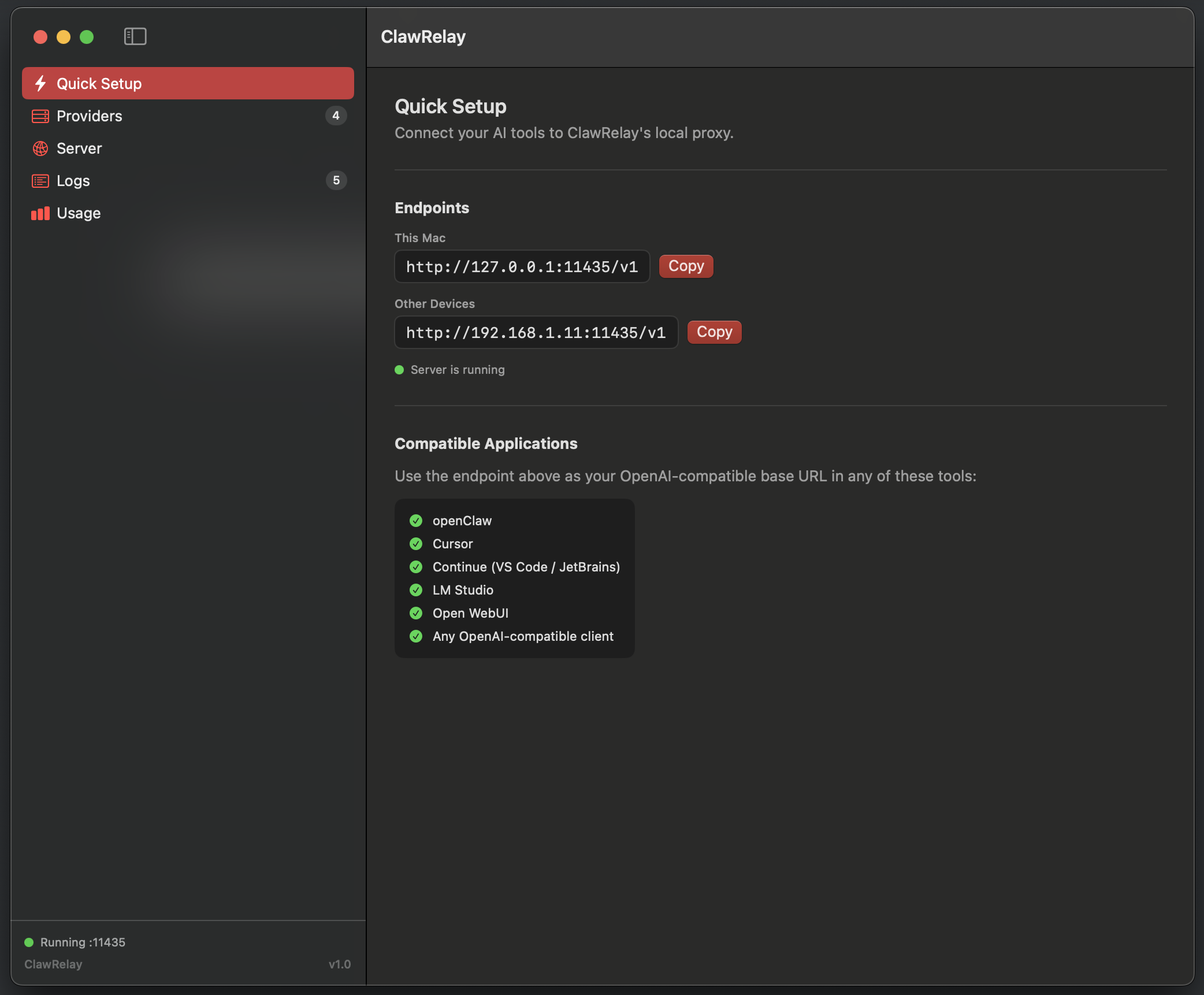
Quick Setup
Copy your local endpoint URL and paste it straight into any AI client. The whole connection takes about 10 seconds.
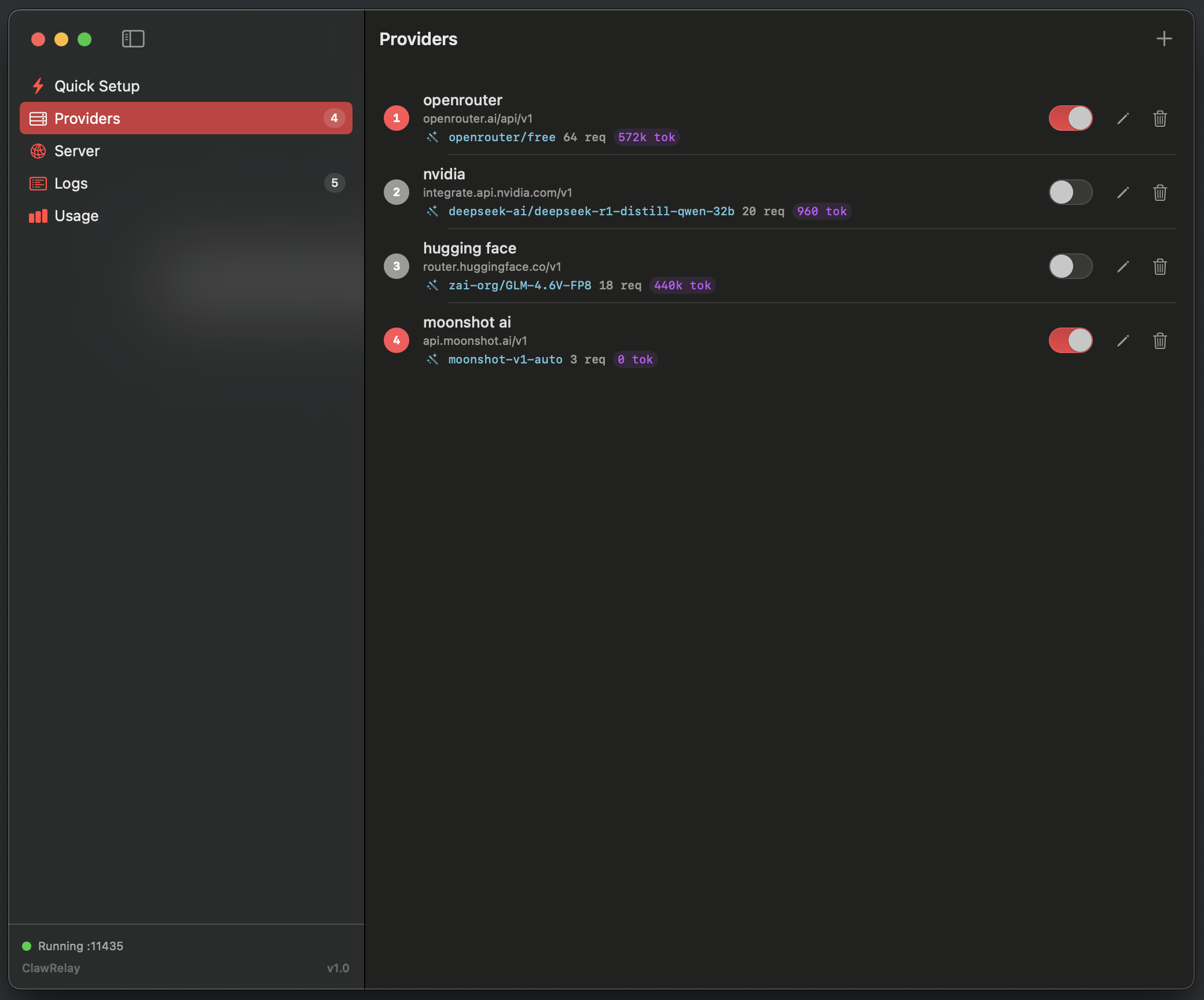
Providers
Add OpenAI, Groq, Ollama, or any OpenAI-compatible endpoint. ClawRelay tries them in order — one fails, the next picks up.
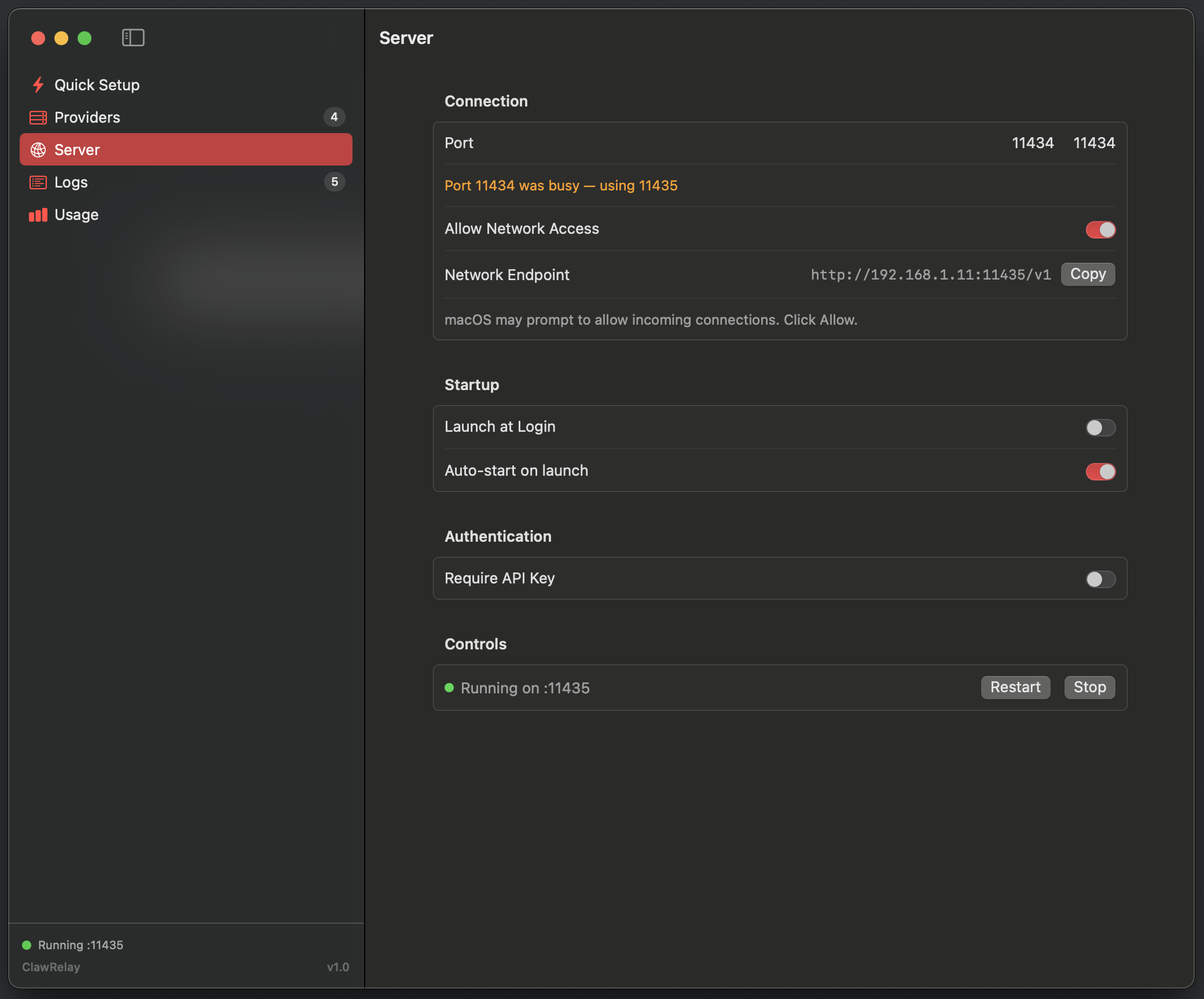
Server
Set your port, enable network access for LAN use, manage launch-at-login, and generate an optional access key to lock the proxy down.
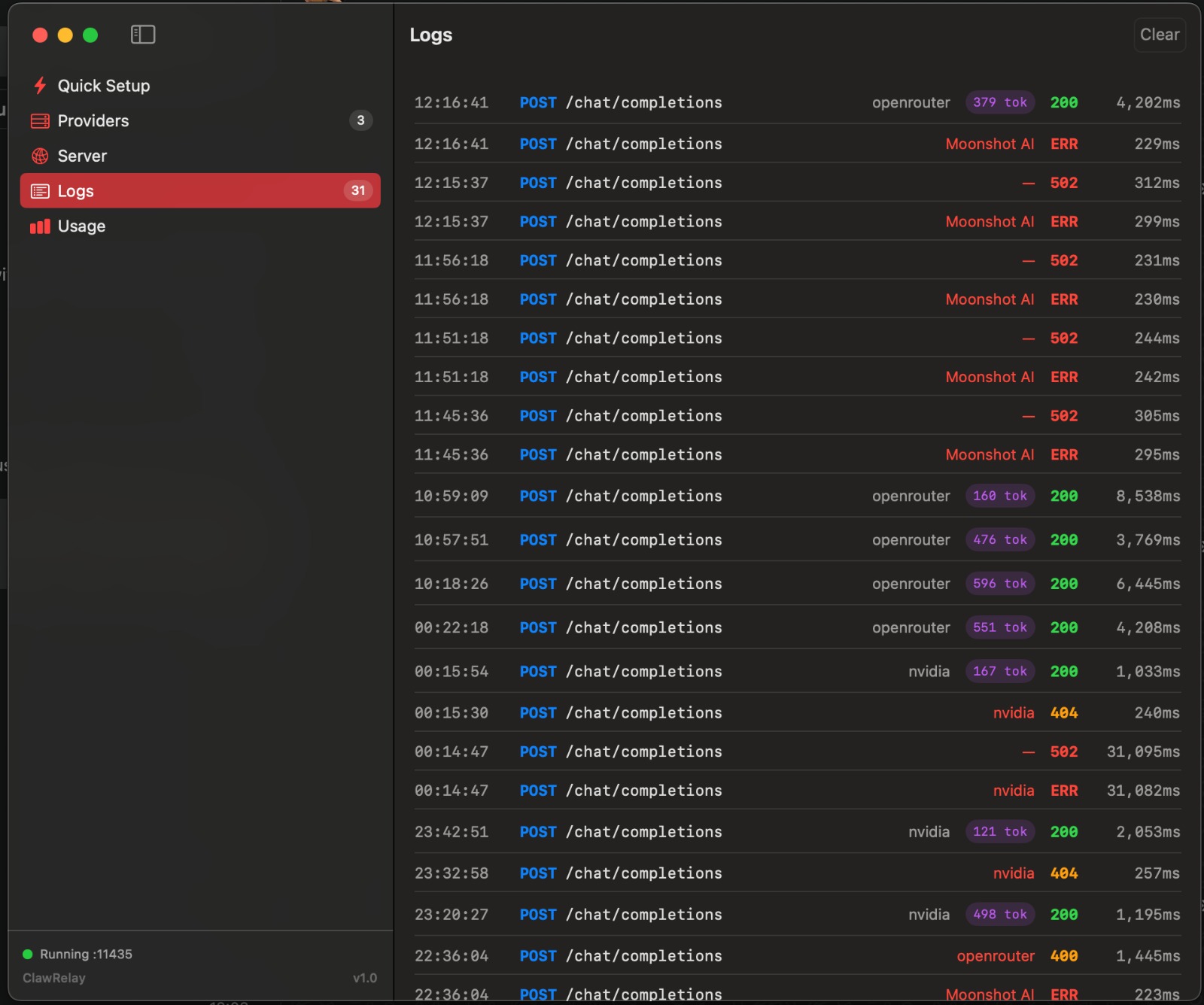
Logs
Every proxied request logged with provider, status, token count, and duration. Tap any row to see the full request and response, or open it in your editor.
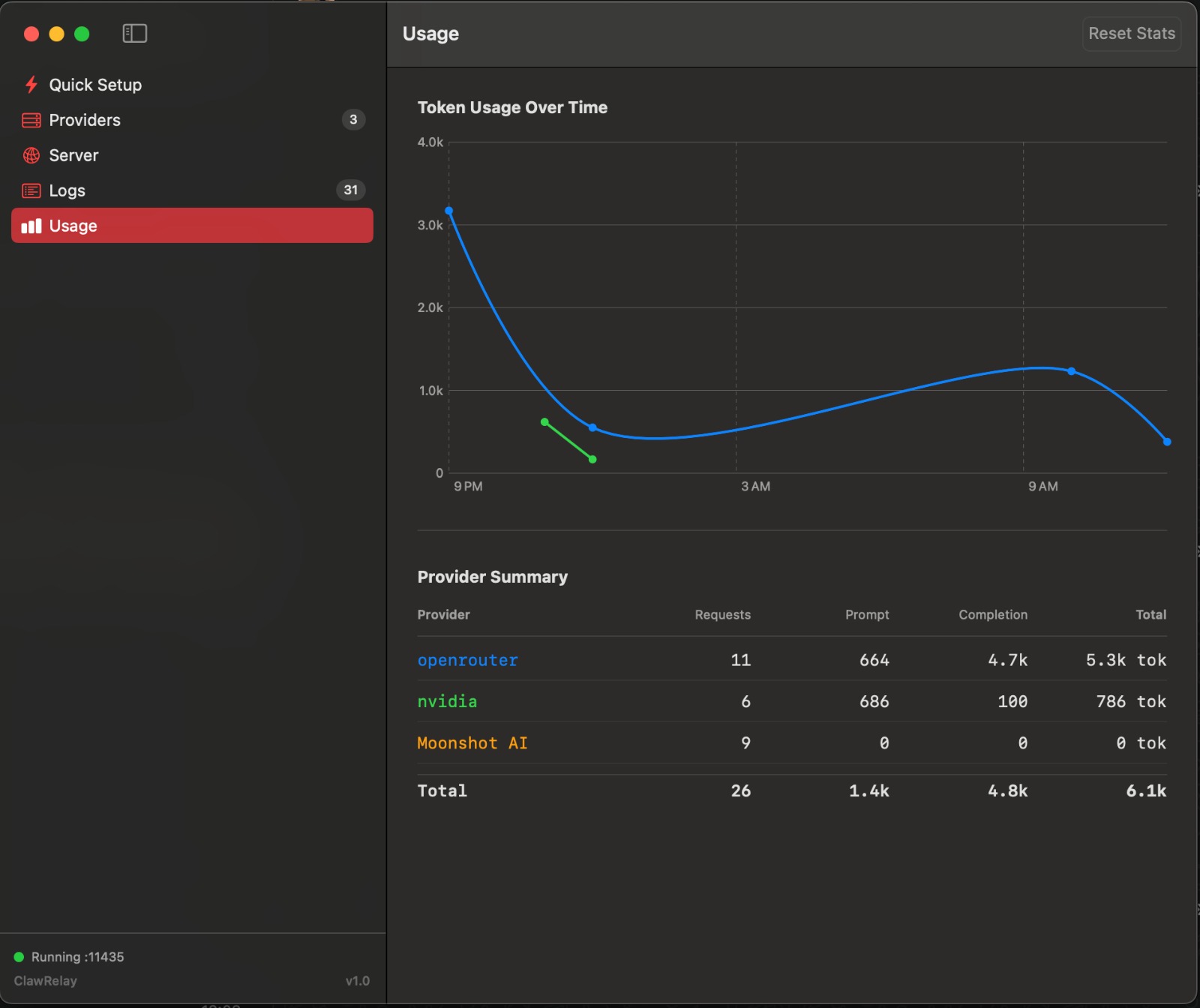
Usage
Token counts by provider plotted over time. See what's actually getting used and where your API spend is going.
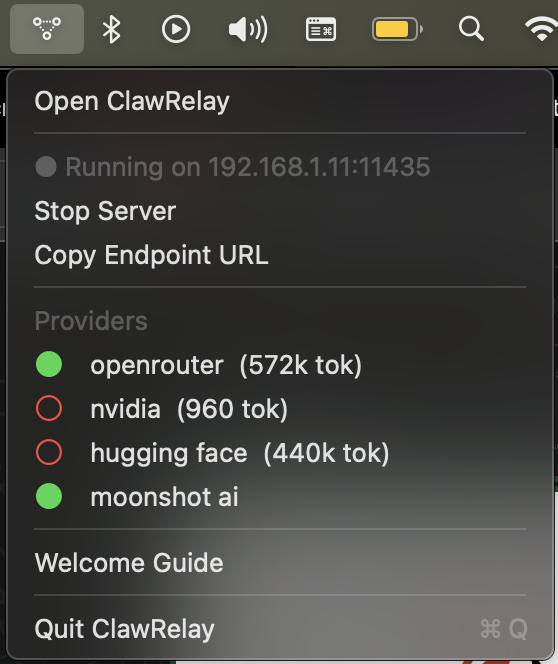
System tray
ClawRelay runs as a menu bar app. Click the tray icon to start or stop the server, flip between providers, and see how many tokens you've used — without ever opening the main window.
Common questions
Do I need an API key to use ClawRelay?
No. A ClawRelay access key is optional and only useful if you're exposing the proxy on your LAN or through a tunnel. For local-only use, leave it blank. Your provider API keys (OpenAI, Groq, etc.) are stored in the macOS Keychain.
Which providers work with ClawRelay?
Anything with an OpenAI-compatible API: OpenAI, Groq, Nvidia NIMs, Ollama, llama.cpp, LM Studio, and more. If it has a /v1/chat/completions endpoint, it works.
How does fallback work?
ClawRelay tries providers in the order you set. If one returns a 5xx error, rate limit (429), or times out, it tries the next one. Your client never sees a failed request unless all providers fail. Auth errors (401/403) return immediately.
Can I use it from another device on my network?
Yes. In the Server tab, enable Allow Network Access. ClawRelay will bind to your LAN IP. You can also put Cloudflare Tunnel or ngrok in front to reach it from anywhere.
How do I use it with Ollama?
Add a provider with base URL http://localhost:11434 (Ollama's default). You may also need to set OLLAMA_ORIGINS=* so Ollama accepts requests from ClawRelay's port.
Where are my API keys stored?
In the macOS Keychain. ClawRelay never writes API keys to disk, config files, or logs. They stay on your device.
The server won't start. What's wrong?
The most common cause is the default port (11434) already being in use (usually Ollama). ClawRelay will automatically try nearby ports. You can also set a different port in the Server tab and restart.
Get in touch
Still stuck?
Email us at rajivsingh.github@gmail.com and include what you were trying to do, what happened, and your macOS version. We'll get back to you.